
A Liveworksheets alternative that writes the exercises for you
Liveworksheets keeps your page as a picture. You place the answer boxes on top of it by hand. MakeLesson reads the material and builds the exercises instead. Students open one link without an account, and every answer comes back to you.
MakeLesson is an interactive exercise and assignment platform for tutors and teachers. It converts PDFs, photos, scans, text and topics into editable online exercises. Teachers share one link, students complete the lesson without creating an account, objective answers are checked automatically, and the teacher reviews every submission in a dashboard.
Liveworksheets is an interactive worksheet platform built around a large public worksheet library. Teachers upload an existing worksheet as an image or a PDF, then place interactive elements on top of it by hand.
Compare how MakeLesson and Liveworksheets build a lesson
Both columns start from the same place. You already have the worksheet, as a photo, a scan or a PDF. The Liveworksheets steps are the ones documented in their help centre.
Liveworksheets
Placed by hand- Upload the page as PNG, JPG, JPEG or PDF, under 5.5 MB.
- Fill in the title, description, student language, subject, main content, level and age range.
- Learn what the elements are and which one each task needs.
- Drag an element onto the page, move it into position, resize it by its edge.
- Open its settings with the pencil icon, type the values, save.
- For a drag and drop, place a Drag and a Drop element, then type the same value into both to link them.
- Repeat for every gap, choice and pair on the page.
You position, configure and link every interactive part.
MakeLesson
Ask for it- Attach the photo, the scan or the PDF, and ask for it to be made interactive.
- Share one link with your students.
Less than a minute, and the lesson is ready to send.
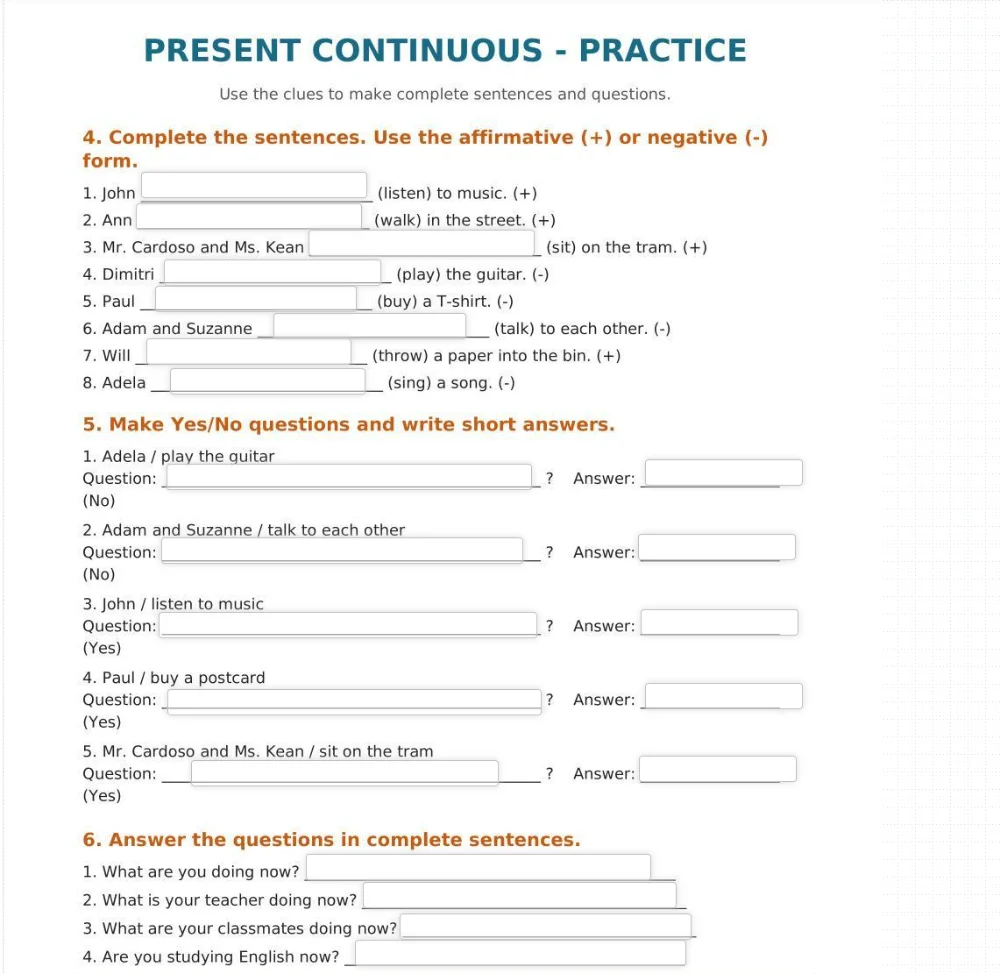
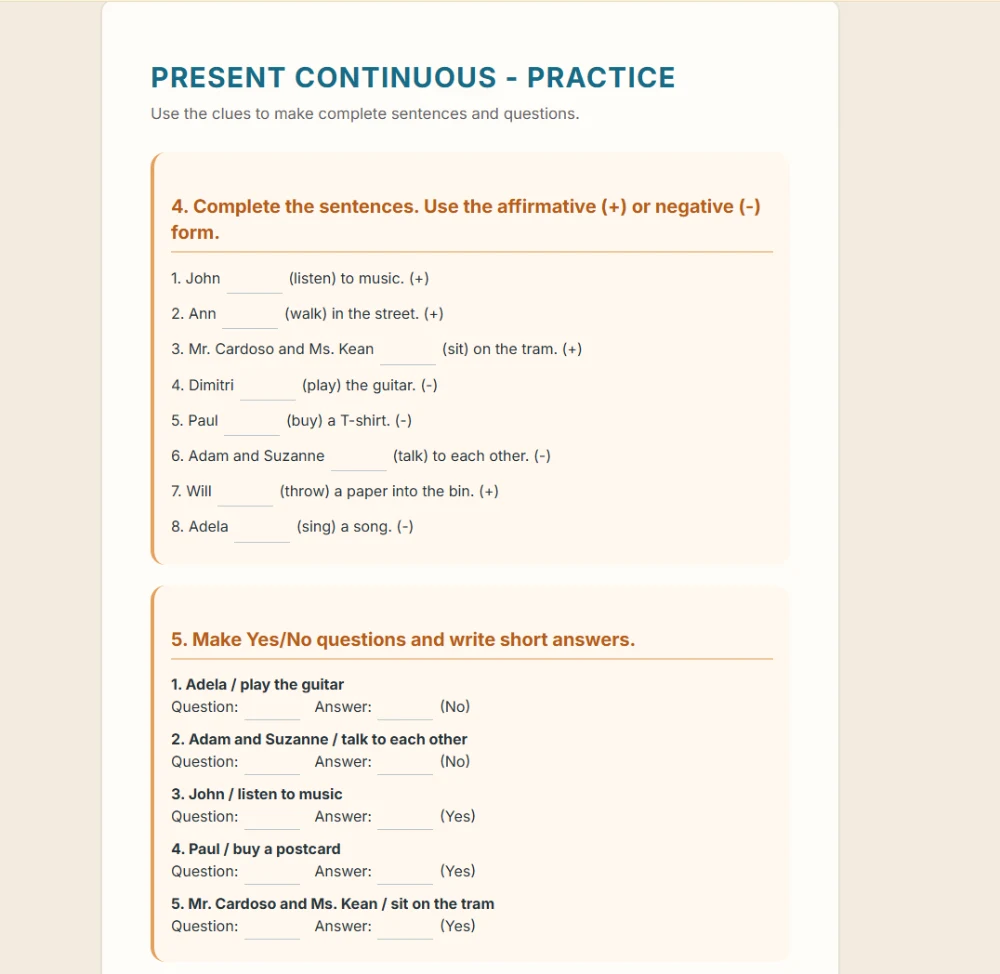
The same worksheet, put through both. On a laptop the two are close.
MakeLesson vs Liveworksheets, feature by feature
| Step | Liveworksheets | MakeLesson |
|---|---|---|
| Getting material in | Upload the worksheet as PNG, JPG, JPEG or PDF, up to 5.5 MB | A topic, pasted text, a PDF, a scan or a photo of a page |
| Building the exercises | You drag each element onto the page and configure it | Ask in chat. There is no builder to learn |
| Editing later | Reposition and reconfigure the elements by hand | Type what you want different, or edit by hand |
| What the student sees | Your original page as an image, with fields on top | Exercises laid out for a screen and sized for touch |
| On a phone | A page image rather than a layout built for a phone. The one we opened had to be zoomed | Adapts to every device automatically |
| Student accounts | Not needed to complete a worksheet. Required for homework submission, response tracking and groups | Not needed to complete or submit. A free account only lets a student pick their homework up on another device |
| Checking answers | Automatic | Automatic per lesson, or across many submissions at once. Each comes back with a suggested rating, comments, and the answers worth your attention flagged. You finalise |
| Reviewing submissions | Response tracking, limited on the free plan | Every submission in one dashboard. Mark, comment, rate and finalise |
| Listening audio | Add your own MP3 to the worksheet | Generated from the text, 30 voices, single speaker or dialogue |
| Exercise types | Elements including single choice, drag and drop, join, dropdown and audio | Ten types, including matching, unscramble, crossword, dialogue and open writing |
| Ads | Shown to teachers and students on the free plan. Ad-free costs $1.99 a month | None, on any plan |
| Ready-made content | A large public library of teacher-made worksheets | A growing library of complete lessons, with fresh ones each week built on real events |
| On a whiteboard | Link out to the worksheet | Link out, or embed the live lesson on the Miro board itself |
| Paper | Downloadable PDF when the author allows it | Print layout paginated for A4, instructions rewritten for paper |
How each one works on a phone
The phone is the device most students have, and usually the one they do homework on. Working properly on it is a requirement now.
Liveworksheets
Their worksheets are built as page images, not for a phone screen. On the one we opened, the sheet ran wider than the display and had to be zoomed before anything could be read.
MakeLesson
Built for every screen, from a desktop down to a phone. Same lesson, same link, and it fits whatever the student opens it on. Try one of the lessons below on your own phone.
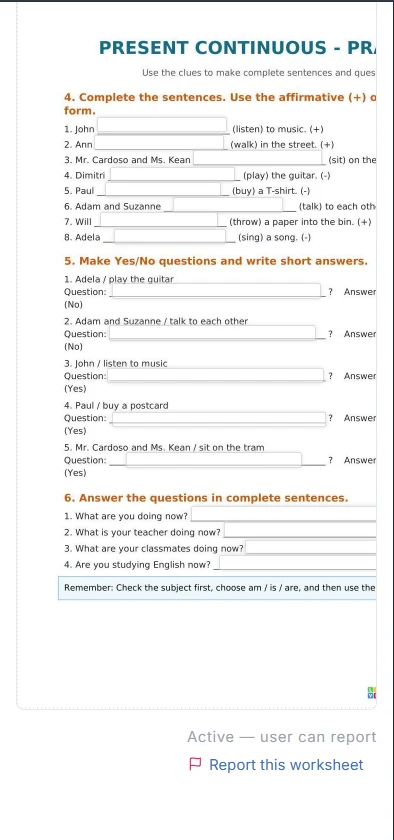
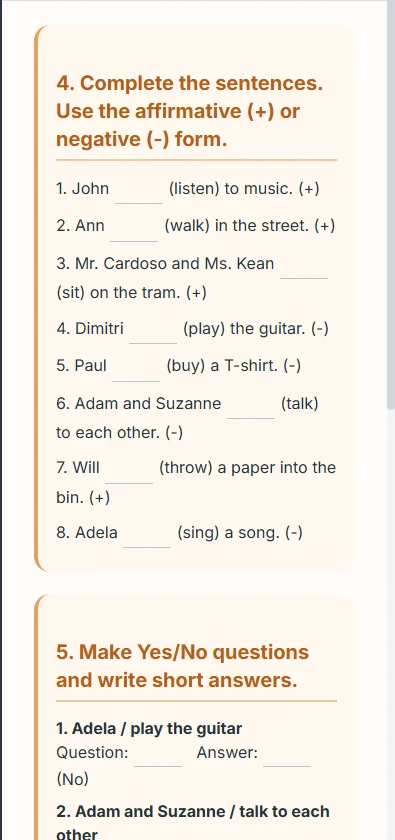
The same worksheet again, on a phone. We checked this on 16 August 2026.
Try the Liveworksheets alternative as a student
Do not take the table above on trust. These are real lessons, open to anyone, with no account. Open one on your phone, because that is where the difference shows.
Make one from your own text
Two tools on this site run without a signup. Paste a paragraph from the worksheet you are using this week and see what comes back. Saving it, assigning it or printing it needs the free account.
Switch from Liveworksheets in three steps
You do not need an import. Paste in a picture of the page, or upload the PDF, and it comes back as interactive exercises.‡
Find the original
The PDF, the scan or the coursebook page you built the worksheet from. A photo of the printed sheet works too.*
Upload it and say what you want
Name the level and the exercises you want from it. Ask for gaps, matching and a short writing task in one sentence.
Fix it, then send it
Read the draft, change what you want by typing, and share the link. Submissions collect in your dashboard.
MakeLesson vs Liveworksheets pricing
We read both sets of prices from the two pricing pages, on the date at the foot of this page.
| Plan | Liveworksheets | MakeLesson |
|---|---|---|
| Free | Basic. 30 private worksheets, up to 100 students, 10 groups, 25 workbooks. Limited homework submissions and response tracking. Ads shown to teachers and students | 20 credits a month. No ads, and no cap on how many lessons you keep† |
| Middle plan | Plus, $7 a month. Ad-free, 125 private worksheets, up to 300 students, 25 groups, 35 workbooks | Pro, $6 a month, 300 credits. No limit on students |
| Top plan | Premium, $15 a month. 1,000 private worksheets, up to 400 students, 35 groups, 100 workbooks, detailed response tracking, priority support | Max, $20 a month, 1,200 credits. No limit on students |
| Removing ads | $1.99 a month as an add-on to the free plan | Not applicable, there are no ads |
| Yearly | One month free when paid yearly | Monthly only. The prices above are already discounted |
Questions teachers ask when they leave Liveworksheets
Can I move my Liveworksheets worksheets over?
You do not need to move files. A screenshot of the worksheet is usually enough, or upload the PDF you built it from, and it comes back as interactive exercises.*
Do I need an account?
Yes, a free one. It holds your lessons, shares them and collects the submissions.
Do my students need an account?
No. They open the link, complete the lesson and submit as guests, and their answers arrive in your dashboard. A free student account is optional, and only so they can pick their homework up on another device. Liveworksheets says a student account is required there for submitting homework, tracking responses and organising groups.
Does it keep the layout of my original worksheet?
No, and that is deliberate. Their format keeps your page as an image with fields on top. Here the material is rebuilt as exercises laid out for a screen and sized for touch, so a phone works as well as a laptop.
Are there ads?
None here, on any plan. Liveworksheets shows ads to teachers and students on its free Basic plan and sells an ad-free add-on for $1.99 a month.
Can I still print the lesson?
Yes. Every lesson has a print layout paginated for A4, with the on-screen instructions rewritten for paper.
What about listening exercises?
Audio is generated from the text, with a choice of 30 voices, for single-voice listening and for multi-speaker dialogue. There is no recording step and no MP3 to upload.
What happens if a generated exercise is wrong?
You change it before anyone sees it. Type what you want different, or edit the text and the answers by hand. Nothing reaches a student until you share the link.
Is there a free plan?
Yes, 20 credits a month. Credits are spent on automatic drafting and editing. Manual editing is always free.
Start with one lesson
Take the worksheet you are teaching this week, upload the page it came from, and compare the result with the version you built by hand.
Private tutors also get a lesson calendar and payments in our tutor management software.
* Check that you hold the rights to any material you upload. Coursebook pages, exam papers and worksheets made by other teachers are usually someone else's copyright, and converting them into exercises does not change that. Material you wrote yourself, and material published under a licence that allows it, are yours to convert.
† Credits pay for automatic drafting and editing, not for storage, so there is no cap on how many lessons you build or keep. What a request costs depends on what you asked for: text, generated images and generated audio are priced differently, and a longer or more complex request costs more than a short one. A request that fails or never reaches you costs nothing. Editing by hand is always free.
‡ We do not use your content to train AI models. Lesson and submission links are closed to search crawlers, but a share link is open to anyone holding it, so treat it as the key to that lesson rather than as a password. Content is sent to third-party AI providers for processing under their own policies. The privacy policy has the detail.
We verified the Liveworksheets details on 16 August 2026 against their teacher plans, their teacher page and their help centre. Prices and limits change. Check theirs before deciding, and tell us at admin@makelesson.com if anything here is out of date.